
TREZOR One Review: 5 Things to Know (2026)
In this complete Trezor One review, we cover everything you need to know about this legendary hardware wallet.
TREZOR One was the first Bitcoin hardware wallet ever created, and it remains one of the most affordable options for securing your cryptocurrency offline.

✓ Pros
- Screen offers extra protection and verification
- Affordable hardware wallet with screen
- Open-source software and hardware
- Supports 1,800+ coins and tokens
✗ Cons
- Older version of the TREZOR hardware wallet
- No Bluetooth or wireless connectivity
- No secure element chip
TREZOR One is a Bitcoin hardware wallet that launched in August 2014. It was the first Bitcoin hardware wallet, offering secure cold storage plus the ability to spend with the convenience of a hot wallet.

TREZOR One is a small, key-sized device which connects to your computer with a USB cable. The Trezor One supports about 1,800 coins and tokens. It stores your Bitcoin (BTC), Ethereum (ETH), Bitcoin Cash, Ripple (XRP), Cardano (ADA), Ethereum Classic (ETC), Monero, Zcash and other cryptocurrency private keys offline and signs transactions. It can be safely used on a malware infected computer.
Price
You can purchase a TREZOR One for only $72 USD. Due to the popularity of the Trezor products, they are often out of stock and may have delayed delivery, so check when placing an order.
Warning
Make sure you NEVER buy a TREZOR or any other hardware wallet from eBay. Only buy from the TREZOR store, PrivacyPros, or any other authorized reseller.
Here is the TREZOR compared to another popular cryptocurrency hardware wallet:
Compare Trezor to Other Wallets
See how Trezor stacks up against the top hardware wallets with detailed side-by-side comparisons.
Security
TREZOR provides top-notch security for bitcoin (BTC), protecting against both physical and virtual theft.
TREZOR is an HD wallet where you control the private keys, so an entire wallet can be backed up with the 24 words generated on setup. The original 24-word seed is generated using RNG from the device and the computer. The seed is generated offline and displayed on the TREZOR's screen, which ensures that the seed is never on an internet-connected device.
A PIN code is required on setup, and required for spending.
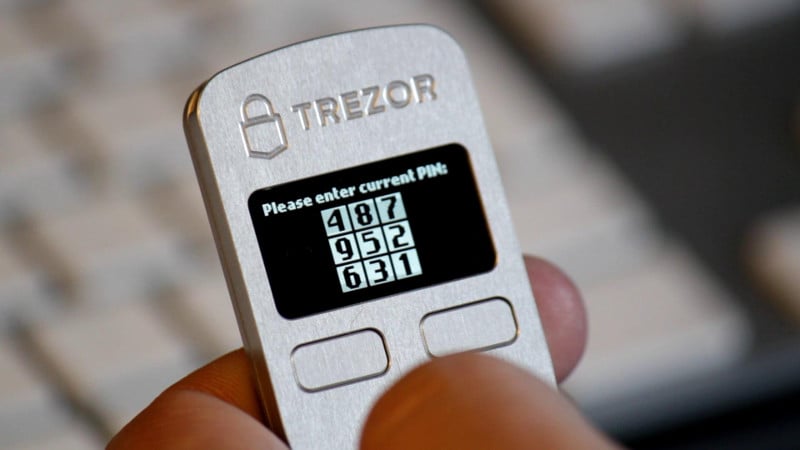
After each incorrect guess the wait between guesses is raised by a power of two. Making 30 guesses would take 17 years.
You can add a passphrase to the 24-word seed as an extra security feature, which acts as a 25th word. You must remember the passphrase because the seed without the passphrase is not enough to recover the wallet. A passphrase offers more security, but if forgotten the wallet cannot be recovered.
You can recover the entire wallet with the 24-word seed and passphrase if used, in the event that your TREZOR is lost or damaged. Recovery can be done with another TREZOR or with other wallets, like Electrum or Mycelium.
TREZOR's screen allows you to confirm that you're sending to the intended recipient, but this does not prevent against phishing attacks.
TREZOR's buttons also make sure that a hacker couldn't automatically send a transaction from your device. The button must be physically pressed in order to confirm each outgoing transaction.
Open Source Secure Element Initiative
Trezor has started an initiative to develop its own open-source secure element chip. This project is called 'Tropic Square' standing for "TRuly OPen Integrated Circuit".
One reason Trezor does not use a secure element, like the Ledger Nano X does, is that all secure elements are closed source. This means you must trust the hardware manufacturer not to create a back door.
Trezor is trying to solve this by creating one that is open-source like the rest of the Trezor stack.
Setup and Initialization
There are two ways to setup your TREZOR: via myTREZOR.com or via the command line. Setup involves setting the PIN code, device name and password.
Top Tools & Picks
Hardware Wallets View top BTC hardware wallets › Cold Storage Find top BTC cold storage › Steel Wallets Protect your seed from fire & flood ›Backup Seed
As mentioned earlier, you backup your TREZOR by writing down 24 words. These 24 words can then recreate your TREZOR wallet in the event your TREZOR is lost, stolen or damaged.
The TREZOR comes with paper to write down the words:
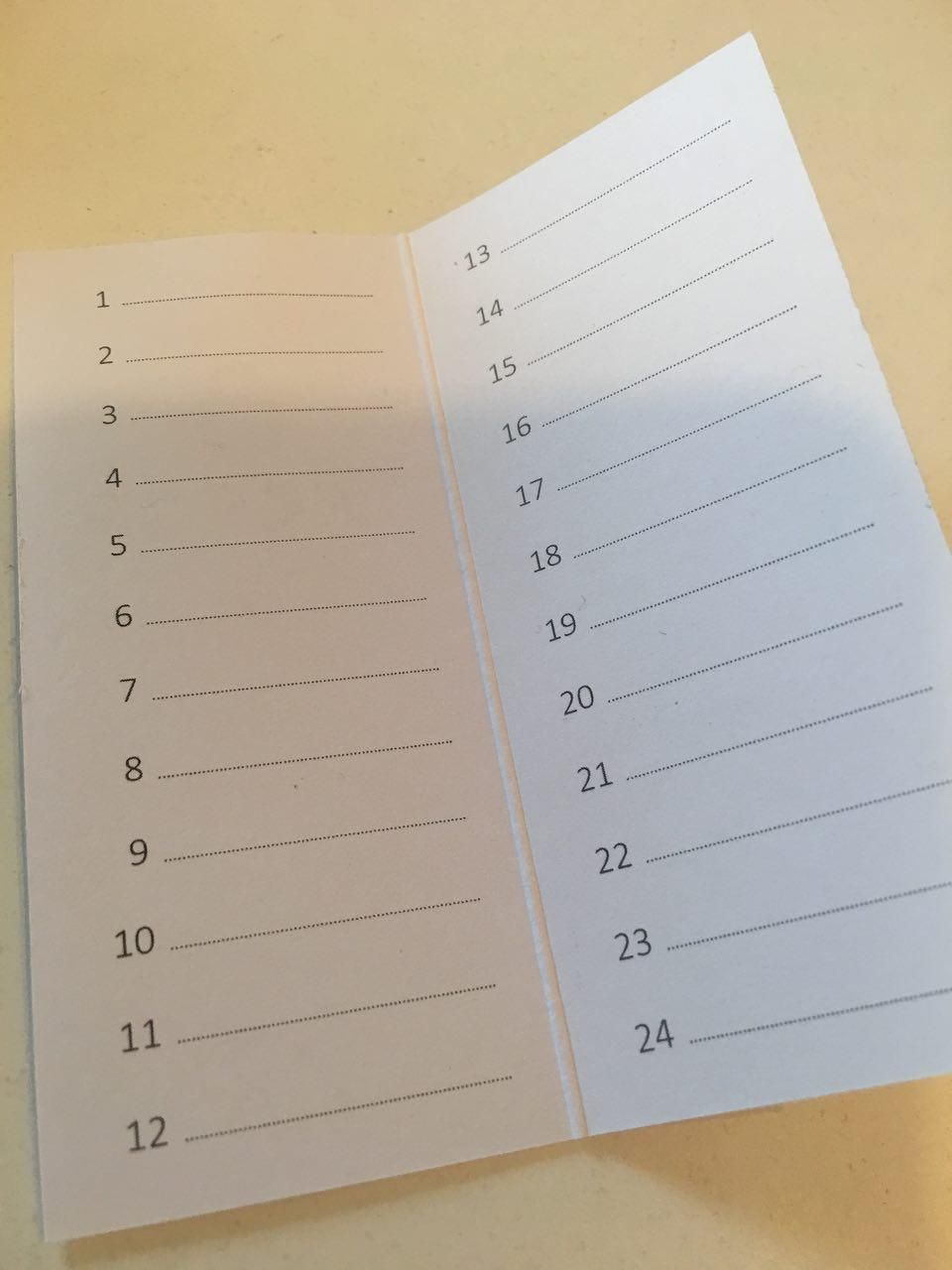
For the extra paranoid user, you may want to store your seed in a fireproof safe. Or, get something like the PrivacyPros Billfodl.
The Billfodl is stainless steel backup solution. It allows you to store your 24 word backup seed on material that is much more resistant to fire, electricity, water and other potential dangers to your backup seed.
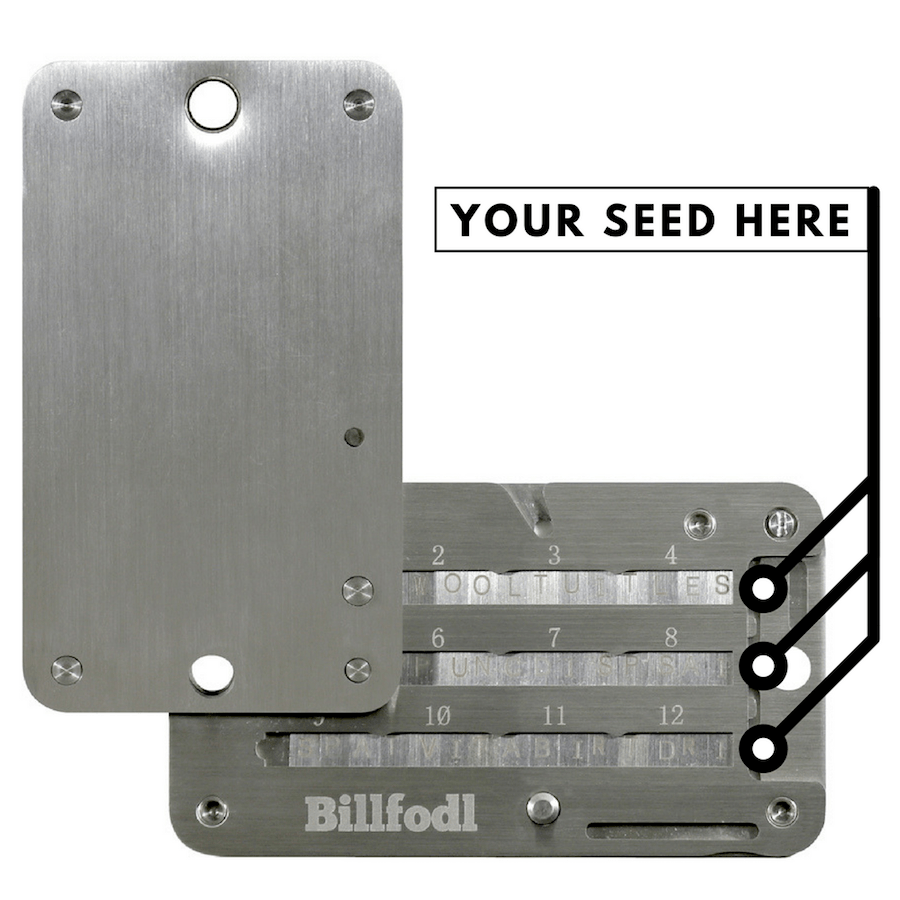
For example, one user had $1 million worth of cryptocurrency backed up on a seed. His house was flooded, and the water destroyed his paper backup seed. This would not have happened had the user been storing his backup seed on stainless steel wallet like the Billfodl.
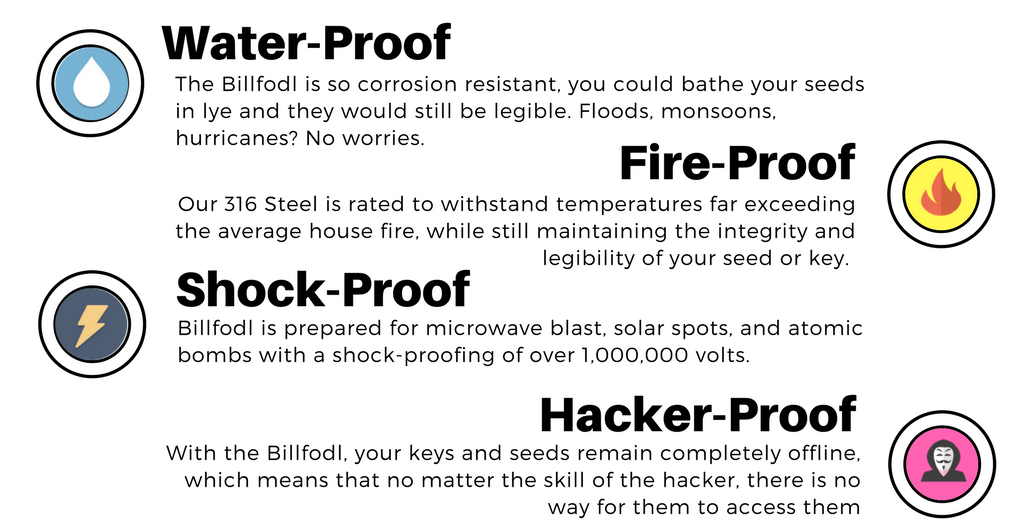
The Billfodl protects your seed from both fire and potential floods. For $99, this can be worth it depending on the amount of cryptocurrency you're storing on your device.
Learn More About BillfodlPrivacy
TREZOR itself offers very good privacy. Satoshi Labs has no way of tracking your actions after you receive the device because it has no serial number. All of the software is open source. No usernames or passwords are needed when using TREZOR.
Privacy is determined by the wallet used with TREZOR: Electrum and GreenAddress on desktop, GreenBits and Mycelium on Android, and myTREZOR.com on the web.
Data can be leaked upon setup if using TREZOR's myWallet, so its better to use a full node client like Electrum.
Wallet UI (Trezor Suite)
Trezor used to use a web portal to manage funds on the Trezor hardware.
However, phishing websites were a common problem, so Trezor has since created a native desktop software called Trezor Suite.
This software has a clean UI that covers everything from device setup to sending and receiving transactions.
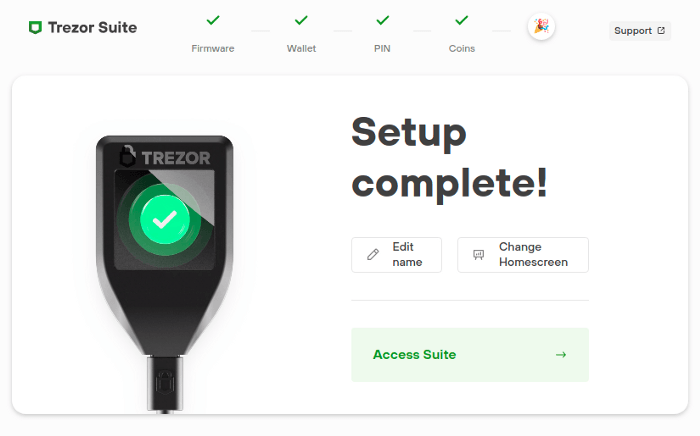
Best of all, it's clean and easy to understand for both beginners and advanced users alike.
It also boasts an array of privacy features on all the coins that it supports natively.
Features such as connecting to Trezor's node via Tor is one of them. This is something you should definitely configure so that TREZOR (the company) will not have access to your IP address.
💡 Privacy Tip
If you do not hide your XPUB (by running a full node), Trezor (the company) will know about all of your transactions. This is because you need to connect to a node of some kind to broadcast transactions. If you aren't running one yourself, then you must use Trezor's hosted node.
Invity - Buy Bitcoin Directly
As part of Trezor Suite you get access to Invity.
Invity is a new way to buy bitcoin and other crypto right on your hardware wallet and have the coins deposited straight to your wallet.
The really innovative part of Invity is that it actually saves you money. In the past, buying coins through your hardware wallet was very expensive. However, with Invity, Trezor has partnered with dozens of exchanges it has vetted for good customer service and allows you to price compare in real time, so you pay the lowest fees for your crypto purchases.
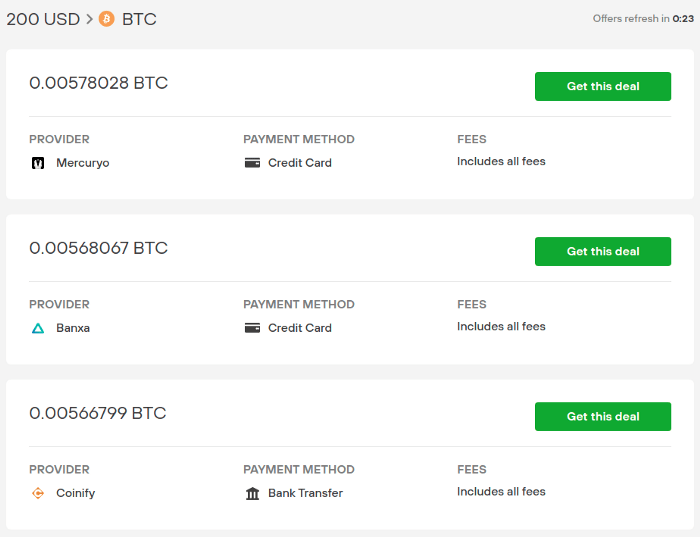
Trezor CLI
You can also get full functionality out of your Trezor One through a command line interface. With the CLI, you can skip the wallet software and run commands directly on the Trezor.
Why would you do this?
For one thing, you know exactly what commands are being issued to the Trezor. When you use a wallet UI like the one shown above, you don't know for sure that the software has been tampered with or that it is necessarily doing the things you think it is doing.
Password Manager and U2F
Your Trezor One can also act as a password manager and U2F Authentication. This means that you can use the Trezor to store all your passwords to various accounts online and/or require that the accounts only login when entering a changing 6 digit password generated by the Trezor.
💡 Quick Tip
If you are using your Trezor to hold crypto, it is best not to connect it to other devices if you can avoid it. For this reason, we DO NOT recommend that you use your Trezor as both a password manager and a crypto wallet. It is best to use each Trezor device as one or the other. If you want to use it for both, buy two Trezors and dedicate one to holding crypto and another to managing passwords.
Software Wallets
Trezor offers compatibility with a number of wallets, including Electrum, and Blockstream Green on desktop, Mycelium on Android, and myTREZOR.com on the web. Trezor One used to require a Chrome extension, but that is now obsolete. You must now use Trezor Bridge to connect your Trezor and supported browsers to work with myTrezor.com.
TREZOR vs. Ledger Nano S
TREZOR and the Ledger Nano S are often compared.
The main difference is that TREZOR is more like a mini computer, while the Ledger Nano S uses a secure chip.
TREZOR vs. Ledger Nano X
The TREZOR One hardware wallet is generally seen as a less capable wallet than the Ledger Nano X.
That's because the Ledger Nano X features a more sturdy build as well as a nicer screen and Bluetooth capability. This makes the Nano X ideal for traders on the go, and the preferred choice over the TREZOR One.
TREZOR vs. KeepKey
KeepKey is actually a clone of the TREZOR's code and firmware.
However Keepkey has not kept up with firmware updates and the device is basically no longer safe to use at all.
Trezor is well maintained by the developers making it much safer to use. Its screen is not as large as KeepKey's but this is not a good enough reason to use Keepkey over the Trezor.
Trezor Supported Coins
TREZOR can be used to store Litecoin, Bitcoin Cash, DASH, Ethereum (ETH), Ripple (XRP), Cardano (ADA), Ethereum Classic (ETC), Monero, Zcash and any other altcoins. It's up to software wallet developers to integrate support–the device itself is compatible with any ERC20 altcoin tokens.
Shamir's Secret Sharing Scheme (SSSS)
Unfortunately, SSSS is only supported on the Trezor Model T, so if this is a feature that is important to you, we recommend you upgrade to that model or do a multisig set up.
Multisig Support
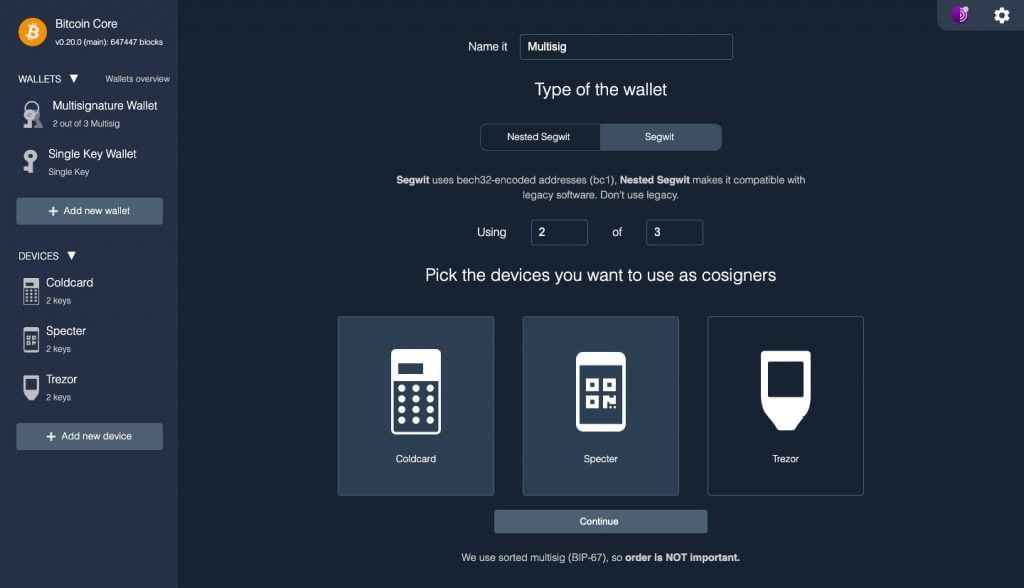
If you'd prefer to do proper multisig over seed sharding, as with SSSS, then there is a way to do it with Trezor One. However, Trezor has no native support for this.
Instead, you will need to use a software wallet like Electrum to set up the multiple signatures.
The nice thing about using Electrum is you can use multiple hardware wallet brands like Ledger and Coldcard.
If you run your own Node, you can use MyNode to help you run either Specter or UnchainedCapital's Caravan. This makes multisig with Trezor even simpler!
How to Use TREZOR with Mycelium
Prerequisites
This article details how to use a previously initialized TREZOR with Mycelium. Your TREZOR must be setup before use with Mycelium.
First, make sure you have the latest version of Mycelium installed on your Android device. Open Mycelium and select "new account". If you already have Mycelium installed then skip this step.
Swipe right to move over to the "Accounts" tab. Click the key on the top right to add a new account.
Click "Advanced". Under "Import a Trezor-HD account" tap "Trezor".
Plug in an OTG cable to your Android device and plug in your TREZOR to the OTG cable.
Enter your TREZOR pin code. The numbers will be displayed on your TREZOR's screen.
Enter your TREZOR passphrase if you have one. Any passphrase will create a valid wallet. If your wallet shows a zero balance, restart the process and double check that the passphrase was entered correctly.
Mycelium will scan for accounts on your TREZOR. Click on an account to load that account, or tap "Import next unused account" to add a new account.
Name your TREZOR account. This is how it will be displayed in the Mycelium app.
You can now send payments from your TREZOR with Mycelium.
💡 Note
Even if the TREZOR is removed after use, the wallet and its addresses will still be viewable in watch-only mode. This way you can still view your balance, generate new addresses, and receive payments.
How to Use TREZOR with Electrum
Prerequisites
This article details how to use a previously initialized TREZOR with Electrum. Your TREZOR must be setup before use with Electrum.
TREZOR can only be used with Electrum 2.0+. Make sure you have the latest version installed.
Plugin your TREZOR and open Electrum. Select Create new wallet and Hardware wallet. The Restore or import a wallet option is for restoring a TREZOR seed if the device was lost, stolen or damaged.
Enter your TREZOR pin. Input your passphrase if you used one. Any passphrase will create a valid wallet. If your wallet shows a zero balance, restart the process and double check that the passphrase was entered correctly.
You can now spend from your TREZOR with Electrum.
Frequently Asked Questions
Trezor One is compatible with a variety of operating systems such as: Android, Mac OS X, Windows, and Linux.
Trezor One packaging should have a thin cardboard box sealed with two hologram security stickers on it.
No, it doesn't have touch screen incorporated. It uses physical buttons for navigation and confirmation.
Yes, most of Trezor software and hardware are open-source, and they are public on their GitHub page.
BuyBitcoinWorldWide writers are subject-matter experts and base their articles on firsthand information, like interviews with experts, white papers or original studies and experience. We also use trusted research and studies from other well-known sources. You can learn more about our editorial guidelines.
- Bitcoin Wiki - Hardware wallet, https://en.bitcoin.it/wiki/Hardware_wallet
- LinkedIn - TREZOR in 2014. What a Year!, https://www.linkedin.com/pulse/trezor-2014-what-year-alena-vranova
- Github - Trezor Open-Source Code Repo, https://github.com/trezor